


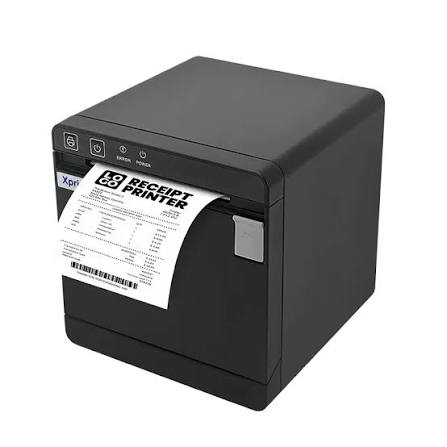
Common Xprinter Receipt Printer Issues and Practical Troubleshooting Tips
Receipt printers are essential for businesses that depend on quick and accurate transaction processing. Retail stores, restaurants, supermarkets, and service counters use these devices to print customer receipts, payment confirmations, and order details. However, like other electronic equipment, receipt printers can occasionally experience problems that interrupt normal operations.
An Xprinter Receipt Printer used with a compatible point-of-sale (POS) system may encounter issues related to paper feeding, print quality, connectivity, or software configuration. Understanding these common problems and their possible causes can help employees perform basic troubleshooting and reduce unnecessary downtime.
1. Receipt Printer Is Not Turning On
A printer that does not power on cannot communicate with the POS system or produce receipts. This problem may be caused by a loose power connection, a faulty adapter, or an electrical supply issue.
Practical troubleshooting tips:
- Check whether the power cable is firmly connected to the printer and electrical outlet.
- Confirm that the power adapter matches the manufacturer’s specifications.
- Test the outlet with another suitable device.
- Inspect the power cable and adapter for visible damage.
- Check the printer’s power switch and status indicators.
If the printer still does not turn on, consult the manufacturer’s instructions or contact a qualified technician. Avoid opening the power supply or attempting electrical repairs without proper training.
2. Printer Is Not Printing
Sometimes a printer appears to be working but does not produce a receipt after a transaction. This can happen because of an incorrect connection, an offline printer status, a software problem, or a communication error.
Start by checking whether the printer is powered on and connected to the POS terminal. Make sure the correct printer is selected in the billing application.
For USB connections, inspect the cable and try another compatible port if necessary. For network or wireless connections, confirm that the printer and POS device are connected to the correct network.
Restarting the printer and POS application may also resolve temporary communication problems.
3. Faded or Unclear Printing
Faded receipts can make transaction details difficult to read. In thermal printers, this issue may be related to low-quality paper, incorrect paper installation, print-head contamination, or unsuitable print settings.
Possible solutions include:
- Check whether the correct thermal paper is installed.
- Confirm that the paper roll is facing the correct direction.
- Clean the print head according to the manufacturer’s instructions.
- Review available print-density settings.
- Replace damaged or unsuitable paper rolls.
If printing remains unclear after these steps, the print head or another component may require inspection.
4. Paper Jam or Feeding Problems
Paper jams can interrupt checkout operations and prevent employees from printing receipts. They may occur when paper is incorrectly loaded, the roll is damaged, or paper residue builds up inside the feeding mechanism.
To address the problem, turn off the printer and follow the manufacturer’s paper-removal instructions. Open the paper compartment and carefully remove the jammed material without pulling forcefully against sensitive components.
Check the roll for folds, torn edges, or incorrect dimensions before reinstalling it. Make sure the paper follows the correct path and that the compartment closes properly.
Avoid using sharp tools to remove trapped paper because they can damage internal parts.
5. Printer Produces Blank Receipts
A blank receipt may indicate that the paper is installed incorrectly or that the wrong paper type is being used.
Thermal printers require specially coated paper that reacts to heat. Ordinary paper will not produce the expected output.
First, check the paper orientation. If the roll is installed correctly, verify that it is compatible with the printer model. If the receipt remains blank, inspect the print head and settings for possible problems.
For impact printers, check the ribbon and its installation because an exhausted or incorrectly positioned ribbon can also result in poor or missing output.
6. Printer Is Frequently Disconnecting
Repeated disconnections can affect transaction processing, especially in busy retail environments. The cause may involve damaged cables, unstable wireless signals, incorrect network settings, or incompatible drivers.
For USB-connected devices, inspect the cable and connection ports. Replace damaged cables with compatible alternatives.
For Ethernet or wireless models, check network availability, connection settings, and signal strength. Confirm that the POS system is communicating with the correct printer address.
If the problem continues, review the network configuration and consult the printer’s technical documentation.
7. Incorrect Receipt Size or Formatting
Receipts may sometimes print with unusual spacing, cut-off text, or incorrect alignment. These problems are often associated with software settings rather than hardware failure.
Check the paper width selected in the POS application and compare it with the printer’s supported specifications. Review receipt templates, margins, font settings, and print scaling.
If the business uses customized receipts, confirm that the template is configured for the selected printer model. Updating the relevant software or driver may also help resolve formatting issues.
8. Automatic Cutter Is Not Working
Some receipt printers include an automatic cutter that separates printed receipts. If the cutter stops functioning, paper may remain attached or fail to separate cleanly.
Possible causes include accumulated paper residue, a cutter obstruction, incorrect software commands, or mechanical wear.
Turn off the printer before inspecting the cutter area. Follow the manufacturer’s instructions to remove visible paper fragments and clean accessible areas.
Do not force the cutter mechanism manually unless the product documentation specifically provides a safe procedure. Persistent cutter problems may require professional servicing.
9. Printer Driver or Software Errors
An outdated, missing, or incompatible driver can prevent a receipt printer from working correctly with a POS system.
Check the installed driver version and compare it with the manufacturer’s available software for the exact printer model and operating system. Reinstalling the correct driver may resolve communication or printing errors.
Before updating software, verify compatibility with the business’s POS application. It is also useful to keep a record of the existing configuration so settings can be restored if needed.
10. Printer Stops Working During Busy Periods
A printer that operates normally but stops during high transaction volumes may be experiencing workload, overheating, connectivity, or power-related issues.
Review the manufacturer’s recommended operating limits and ensure the printer has adequate ventilation. Check the power supply, paper condition, and connection stability.
For businesses with frequent transactions, selecting equipment appropriate for the expected workload is important. Regular maintenance and periodic testing can help identify potential problems before peak operating hours.
Preventive Maintenance Tips for Better Printer Performance
Routine maintenance can reduce common receipt printer problems and support more consistent operation.
- Clean regularly: Remove dust and paper residue according to the manufacturer’s cleaning instructions.
- Use compatible paper: Select rolls that match the printer’s supported dimensions and specifications.
- Check connections: Inspect power cables, USB connections, and network interfaces periodically.
- Update software: Install compatible drivers and POS software updates when necessary.
- Train employees: Teach staff how to load paper, identify status indicators, and handle basic errors.
- Monitor print quality: Investigate faded output, unusual noises, or repeated feeding problems early.
A simple maintenance schedule can help businesses keep their printing equipment in suitable working condition.
When Should You Contact Technical Support?
Basic troubleshooting can resolve many routine problems, but some issues require professional attention. Persistent power failures, damaged internal components, repeated cutter malfunctions, and suspected print-head defects should not be handled through guesswork.
Before requesting assistance, record the printer model, operating system, connection type, error indicators, and steps already attempted. Providing this information can help technical support identify the problem more efficiently.
Conclusion
Common receipt printer problems include power failures, blank receipts, faded printing, paper jams, connectivity interruptions, and software errors. Most basic issues can be investigated by checking paper installation, connections, settings, and routine maintenance requirements.
By following safe troubleshooting procedures and using compatible supplies, businesses can reduce avoidable printing interruptions. Regular inspections and timely technical support also help maintain dependable receipt printing for everyday POS operations.